
Make the most of free sim card and start enjoying fast internet plans with no contracts
Ken • November 27, 2019
Make the most of free sim card and start enjoying fast internet plans with no contracts
4G LTE wireless broadband is 10 times faster than 3G — The connection is able to handle download speeds between 5 and 12 Mbps (Megabits per second) and upload speeds between 4 and 5 Mbps, with peak download speeds approaching 50 Mbps. Cable speeds vary when using an ethernet cable connected to the device, but 4 to 12 Mbps are common.
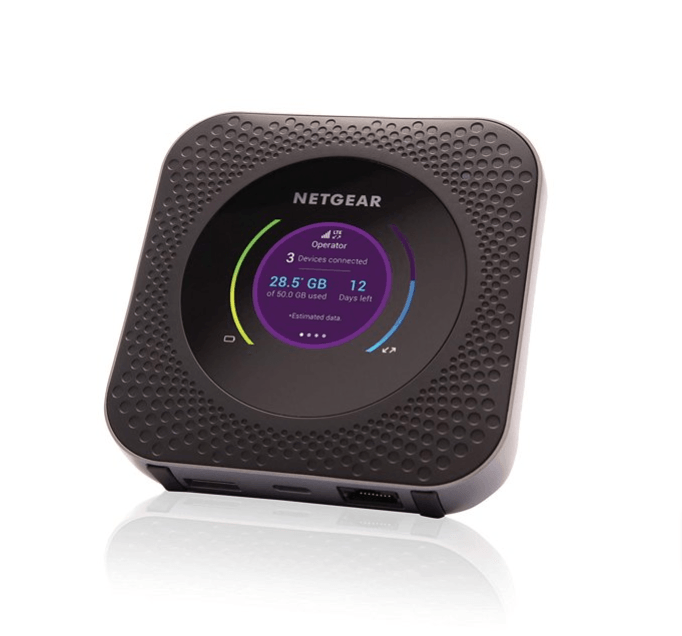
Does the Nighthawk M1 LTE Hotspot work with Verizon (US)? Can I just get a prepaid sim card from a provider, plug it in and good to go?
Unlock the power of fast, reliable internet! Don't let slow connections hold you back any longer.
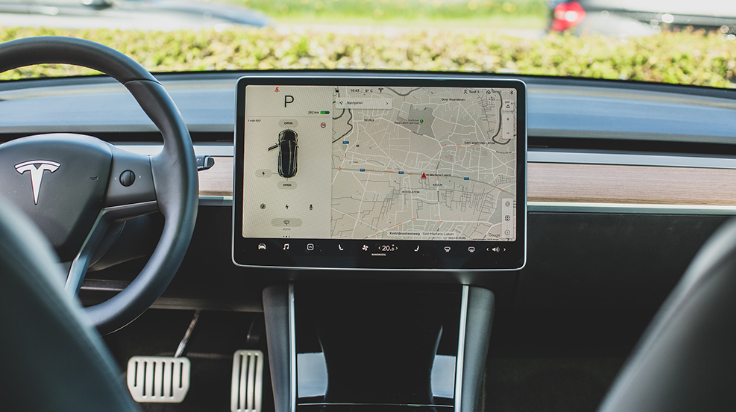
Now more than ever, you can have unlimited data while on the go. This is also true for Tesla owners. Empower your tesla with unlimited internet on the go. Connectivity plays a vital role in enhancing the overall driving experience across all Tesla vehicles. It provides access to a range of data-dependent features, such as streaming music and media, real-time traffic visualization, and more. Every Tesla vehicle comes standard with access to what is known as ' Standard Connectivity.' This feature is included in your vehicle's package and is available for eight years, starting either from the day your vehicle was initially delivered as new by Tesla or the first day it is put into service (for instance, if it's used as a demonstrator or service vehicle), whichever occurs first. If you're purchasing a used Tesla, you'll be informed about the duration of Standard Connectivity access that comes with your vehicle or may not be available at time of used car purchase. Standard Connectivity enables you to utilize most connectivity functions over Wi-Fi, along with basic features like maps, navigation, and music streaming via Bluetooth®. For a more comprehensive and immersive ownership experience, there's 'Premium Connectivity.' This service offers access to all connectivity features not only over Wi-Fi but also through cellular data. You can opt for Premium Connectivity on a monthly basis, priced at $9.99 plus applicable tax, or as an annual subscription for $99 plus applicable tax. When you order a Model S, Model X, Model Y, or Model 3, you'll receive a trial of Premium Connectivity upon delivery. For those who need to connect other devices to Wi-Fi, there is no way to do that with the options available with your tesla. The only option is to get a reliable hotspot that is compatible with your tesla- we recommend the Netgear nighthawk unlimited package from UNLIMITA as it comes with USB C that can be used with your tesla for always on internet on the go. However, if you're using a Tesla for business purposes, it's advisable to reach out to Unlimita and check out reliable internet connection options for further details." The big problem here is that , what Tesla calls premium connectivity cannot be used as a Wi-Fi hotspot to connect other devices so you can access internet on the go. Unlimita has solved this problem by providing reliable unlimited data connectivity that you can use in your tesla, just plug in the USB C to your tesla charging port and the in-built battery on the device will ensure that connectivity is always on for your tesla to even perform over the air updates even when you are not driving. Internet connection on the go using a hotspot is a game-changer for Tesla owners when they're away from home. Imagine having seamless access to the full range of Tesla's connected features wherever your journey takes you. Whether it's streaming your favorite music, accessing real-time traffic updates, or utilizing over-the-air software updates, a hotspot empowers your Tesla with uninterrupted connectivity, transforming your driving experience into an even more enjoyable and productive one. Don't miss out on this opportunity to enhance your ownership experience; it's time to invest in a hotspot for your Tesla and stay connected, no matter where the road leads you. Take action today and unlock the full potential of your Tesla!

Empowering Rural Connectivity
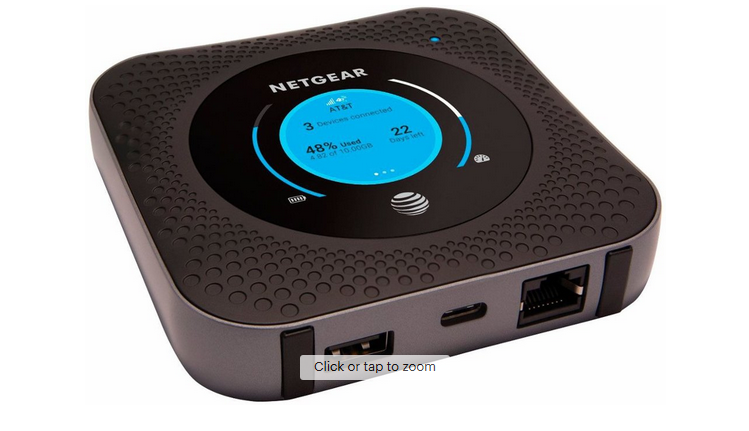
HOW TO RESET NETGEAR NIGHTHAWK M1 MOBILE HOTSPOT TO FACTORY DEFAULT SETTINGS If you have difficulties getting access to your Netgear Nighthawk M1 mobile hotspot or you’ve misconfigured it or forgotten your password, resetting your mobile router will help. In this quick guide we look at 3 ways to reset your Netgear Nighthawk M1 mobile router to factory settings: Reset to factory settings using the RESET button Make sure your router is ON and plugged in or receiving power from its battery: 1. Slide up the cover at the back of the router 2. Leave the battery in its place 3. Locate the ‘RESET’ button which is below the battery 4. Using a paper clip or a safety pin, PRESS down the button for 10 seconds until the router resets. 5. Place back the cover on the router. This will reset your router to factory default settings. Reset to factory settings from a Web Browser 1. Launch the web browser of a device which is connected to the network 2. Type in http://m.home or http://192.168.1.1 and login as an administrator 3. On the top right press MENU > SETTINGS > ADMINISTRATION > FACTORY RESET 4. Press RESET DEFAULTS and YES to confirm. This will take about 2 minutes to reset your router to factory default settings. Reset to factory settings from the Netgear Mobile App 1. Launch the NETGEAR Mobile App on a mobile phone connected to the router’s network. 2. Swipe down to Settings 3. Press 'Firmware’ 4. Press ‘Perform Factory Reset’ and YES to confirm. This will reset your router to factory default settings.
Most UNLIMITA customers will have issues with their device and will need to troubleshoot. We have created this blog to help you find useful information when you need it the most. Device will not charge The device runs out of battery quickly, ‘No Battery Error Appears.’ When there is a Faulty charger Plug the charger into device. If properly inserted, a red light should blink periodically indicating that it is charging. If the light does not blink periodically, the charger may be faulty. Replace the charger. When there is a Faulty battery First, make sure the battery is charged. If the device is not fully charged, the device can appear to be broken by not turning on. When charging the device, make sure the cord is inserted into the device correctly. A red light should blink periodically as it is charging. Before trying to turn on the device again, make sure a SIM card is inserted into the device. If the device is still not working, try buying a new battery to replace the old one. Faulty cooling system When charging the device, if it begins to overheat, factory reset the device. If the reset of the device does not help the overheating problem, purchase a replacement battery and follow instructions for replacement. SIM Card not working I can’t get the SIM Card to insert into the device. 'My SIM Card is broken.' SIM Card is not inserting into the device In order for the SIM Card to operate properly it must be inserted correctly and fit in the SIM slot. To check if the card is inserted correctly, open the cover that secures the SIM Card, take it out and push it back in. The SIM Card should not stick out and if it does, it is not the correct size. Faulty SIM Card A sign that says "Error Code 0” flashes on screen, which signifies that the SIM Card is not being recognized. In order to fix this error, take out the SIM Card and put it back in. Then, power the device back on. If the error code appears again, it may be filled or damage and need to be replaced. With this, order a new SIM Card of the same size and follow the guides for replacing and unlocking a new SIM Card. SIM locked If the SIM Card is “locked,” contact the ISP/carrier (http://attunite) and follow their instructions to go to the Mobile Hotspot Homepage. Here, you will login and be given the information from your carrier under the “Administrators Page." Then, enter the PIN your carrier gives for your specific SIM Card and this should unlock it and give you access to your device. If this does not resolve the problem, then contact your ISP/carrier again and explain that the process did not work. The carrier should give you a separate set of instructions or cause you to need to replace the SIM Card with a new one. Wi-Fi won’t connect to device My device will not connect to my Wi-Fi. Username or password is invalid Make sure the username and password that you are trying to connect with the device are correct. Depending on your service provider you may need to check your username, password, and/or APN (Access Point Name). Connection profile not set up In order to connect the Wi-Fi hotspot to an Internet connection, a connection profile must be established. By logging into the Unite Manager homepage as administrator and finding “APN” in settings, a network connection can be authenticated. By setting up a new APN, the Wi-Fi hotspot should gain connection. Once the APN is set up the mode must be set to “Active” by selecting the tab. Device won’t unlock I can’t use the device because it won’t unlock. No unlock code If your device won’t unlock, contact AT&T in order to receive an unlock code. Also, make sure your SIM card is correctly inserted into the device and the battery is fully charged before trying to unlock it. After using the unlock code and unlocking your device, remember to create a connection profile before you start using it.

Unlimited Wireless Internet Data - Excellent for Business or Home or on-the-go. Truly unlimited, no slow downs.
Plan never goes up. Satisfaction Guaranteed!
Plan comes with activated SIM. If you do not have a compatible router, order one of our Routers as addon
We offer great value high speed and reliable business broadband with our specially designed packages